
Switch to Microsoft account from local account requires prior setting up.
Click on Start, select your local account.
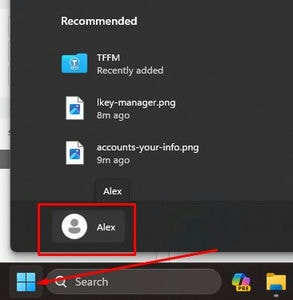
Select Change account settings option.
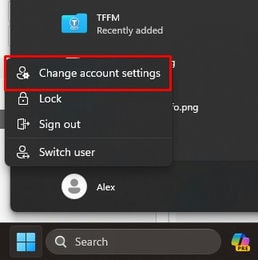
Click on Accounts and select Manage my accounts.

Sign in to your Microsoft account with your credentials. You may be required to authenticate with any existing additional step like SMS OTP, etc.
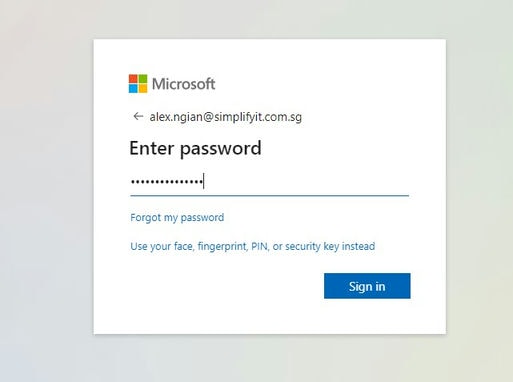
Once signed-in, click on Security Info.

Select Add sign-in method to add your USB key.

From the drop-down list in Add a method, select Security key.

Click Add.
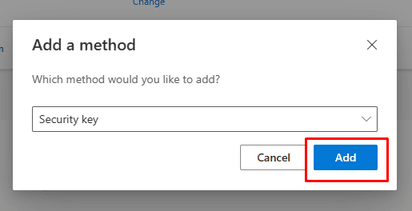
Click next and sign in with 2FA if required.
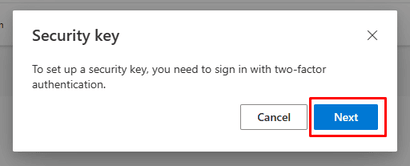
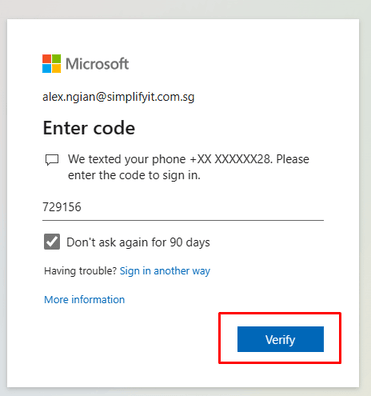
Select current 2FA authentication method.

Enter the code received.
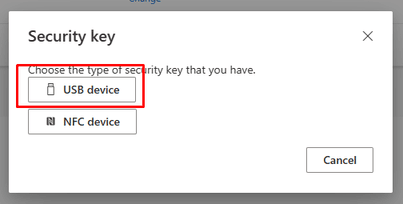
Select the type of device, USB or NFC.
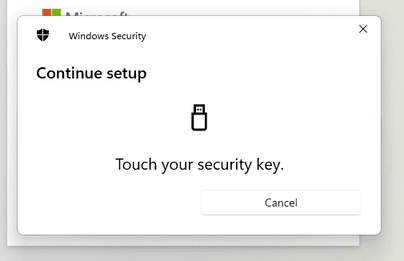
Insert your key and click next.

Select your security key to store the passkey.

Click OK to allow setup.

Type a pin to secure key.

If your USB key is biometric type, you may need to add your finger print as well.
As the same security key may also be used for authenticating other apps and services, provide a name associated with this setup for ease of recognizing the profiles stored.

In event that you want to reset and/or transfer the key to someone else, you may reset the key using TrustKey Solutions Key Manager. Click Factory Reset option in application.
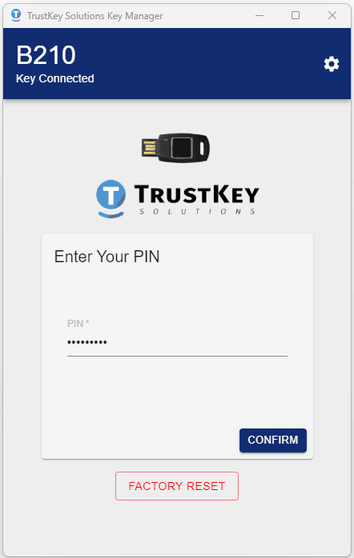
You may download the application from https://www.trustkey.kr/en/sub/support.form under Product Material.

